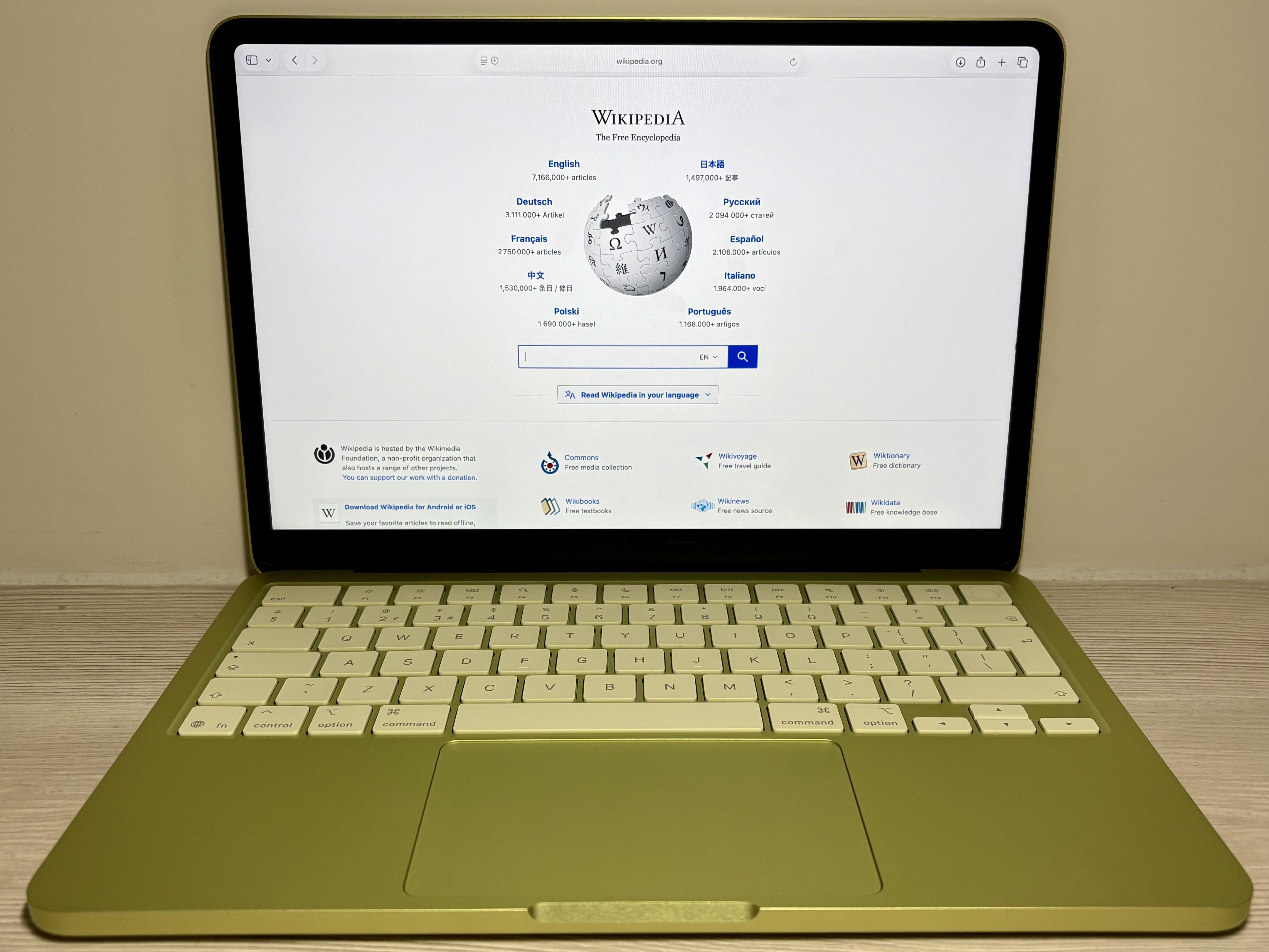
Start with capability, not the connector
A plug fitting a socket does not establish that your laptop and accessory support the same functions. The Neo and Air illustrate why a port specification matters. Before buying a monitor or dock, write down what must pass through the connection: charging, data, video, or several of those together.
Research basis: DelaTechHQ has not physically tested these laptops. This article interprets manufacturer documentation accessed on 24 September 2026. It contains no measured performance or battery results. Product photographs are credited third-party images, not our test units.
Two sockets can do different jobs
According to Apple’s Neo port guide, one Neo USB-C port provides USB 3 data up to 10Gbit/s and display output, while the other provides USB 2 data up to 480Mbit/s. Both accept charging. Apple recommends charging through the USB 2 port so the USB 3 port remains available. Those are interface ceilings, not promised file-copy speeds.
If a monitor does not work on the Neo, identifying the correct port is an early check. If an accessory requires Thunderbolt exclusively, Apple says it is incompatible with the Neo. An accessory that also supports a compatible USB standard may work through that mode; verify its documentation rather than assuming the name or connector tells the whole story.
Count supported displays separately
The Neo specification lists one external display up to 4K at 60Hz alongside its internal screen. The 13-inch M5 Air specification and 15-inch M4 Air specification support up to two alongside the built-in display, subject to their stated resolution and refresh limits. Two sockets do not automatically mean two independently supported external monitors.
Write the exact monitor combination down before selecting a dock: number of displays, resolution, refresh rate and the inputs available on each monitor. Then confirm that combination in the laptop and dock documentation. This article does not validate a third-party dock or software workaround.
Plan charging and data together
The two Air models here provide a separate MagSafe charging connection as well as Thunderbolt 4 USB-C ports. Charging by MagSafe can leave both USB-C connections free. On the Neo, allocate a USB-C port to charging unless your verified accessory setup provides another supported arrangement. A simple connection plan can prevent purchasing a hub that adds sockets without satisfying the requirement you actually have.
A practical troubleshooting order
- Identify the exact laptop model and generation.
- Check that you are using a port that supports the intended task.
- Check the cable and adapter documentation for that task.
- Verify the complete monitor arrangement, including resolution and refresh rate.
- Follow the accessory manufacturer’s setup instructions.
- If unresolved, consult model-specific support before buying replacement hardware.
Use the specification to narrow the choice
This is a compatibility planning method, not a reason to buy a more expensive laptop automatically. Someone who needs one display and straightforward USB accessories may have a different requirement from someone who owns Thunderbolt-only equipment. The Neo review, M5 Air review and M4 Air review explain those trade-offs in context.
Continue with the three-option Mac laptop guide, Air size-and-generation comparison, or USB-C and display explanation. Browse Laptops and the author profile.
Photo source: MacBook Neo in Citrus — Padgriffin. Photo: Padgriffin, CC BY 4.0 https://creativecommons.org/licenses/by/4.0/ . No edits by DelaTechHQ.

Commercial transparency: no affiliate tracking or merchant offer is configured for this batch. Source links are references. No compensation, loaned product or sponsorship is asserted. Read the site disclosure.